Read the Documentation

Read the Documentation

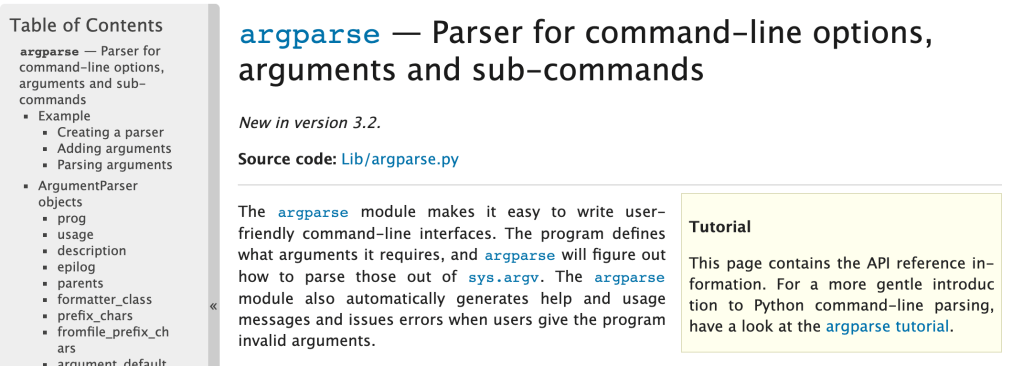
So when I start off learning something, I want to have a perfect knowledge of everything right away. I know that’s not realistic, but here we are. When I have a question about a topic, I generally just do a Google search and find the nearest Stack Overflow article that seems relevant and see what they did to solve my issue. Recently though, I’ve been taking more time to sit down and actually read documentation on specific modules, concepts, technologies, etc and it’s been very helpful. I’ll give some explanation as to why I recommend you read documentation.

Documentation gives you the most in-depth and up-to-date information as to what you’re researching. I always check the date on any articles that aren’t documentation because you never know how old they are and if they’re still relevant. Other types of articles may do a good job at addressing one aspect of what you’re looking for, but if you read the documentation, you’ll get to see other things you might not have realized were options.

You will learn more comprehensively than exclusively reading articles or forum posts. A blog post may not cover every possibility and option available to you for a module, but the documentation will.

You’ll get better at reading and understanding how to read documentation. And with that, get a better understanding of how whatever you’re learning about works. I used to steer clear of reading a lot of documentation because I thought it was difficult to understand. And sometimes it kind of is. However, I’d recommend sticking with it.

-Rachel

You Should Be Using Python Classes

You Should Be Using Python Classes

Python is cool. So are Python classes. If you develop with Python and haven’t used them yet, I suggest that you do. They’re something that I started using a few years ago and they have come in so handy when it comes to re-using code and maintaining scope easily.

When I first started learning about and using classes there were a few things that confused me and were different than just writing a simple script. You can’t -just- run them from the command line and expect them to work. You have to instantiate your class. That means you have to call it and it will create an empty object for you. So say you created a python class in zippy.py.

# zippy.py
class CoolClass:
    def hi(self):
        return 'Hi!'

# instantiate the class from the same file
coolClassObject = CoolClass()

The first thing is that your function is now inside a class. The second thing is you have this variable thing called self. So to instantiate this class you can call it within the same file or you can pull up a python shell and import it.

# pretend this is a python shell

import zippy
coolClassObject = zippy.CoolClass()

So now you’ve got a variable with your class object in it. Yay! Now I guess you want to call your hi function. Super straightforward. coolClassObject.hi() and there you go, you’ll get ‘Hi!’ returned.

The coolest thing about classes (In my opinion, but this is my blog, so what else would you expect?) is the __init__(): method. It’s basically a place where you can initialize all your variables, data passed in when you instantiate the class, etc. You can then use everything in your __init__(): throughout your class. I like being able to define static, global values or any data structures; if I have URLs that I need to reference for APIs I’ll also define them there. You can also pass in parameters when you first instantiate the class (required or optional). So so handy.

# zippy.py
class CoolClass:
    def __init__(yourName='Bort'):
        self.name = yourName
        self.group = 'Cool'
    def hi(self):
        msg = 'Hi, {0}. You are in the {1} group'.format(self.name, self.group)
        return msg

# instantiate the class from the same file with no parameter passed in
coolClassObjectDefault = CoolClass()

# instantiate the class from the same file with your name
coolClassObjectRachel = CoolClass('Rachel')

I’ve added the init method now and I’ve defined an optional variable that you can define when you first instantiate the class. If you’ve made changes in a python shell and you’re using python3 (which I’ll be using unless I say otherwise), you’ll need to import imp to reload the module.

When you run it now, you’ll get your message to return with the default argument of Bort for the first object and Rachel will be in the second one. Notice how I could instantiate two versions of the same class? Super handy.

I’ll wrap up with a brief talk about self. I like to think of it as mega-variable. Python officially calls it an instance variable. Anything that got defined in __init__(): is stored in self and you can then use it throughout the rest of the functions in your class. You just have to make sure that self is passed into each function (you’ll get an error otherwise) and then you can use it throughout your class functions.

-Rachel
Level 0 Docker Cheat Sheet

Level 0 Docker Cheat Sheet

I’ve been playing around and modifying some existing Docker containers recently and here’s a couple of commands that I found out I use a lot. There’s a lot of extra flags you can give these little commands and you can peruse the docs for more information on them.

docker ps lets you list all your running containers and their details. A lot of the times you need the container name or ID for various reasons and this allows you to grab that information. Super handy.

Another good command for listing things (images specifically) is docker image ls. This lets you list all of the images.

docker logs [container name] is great for debugging and checking any logs that may occur in your container.

docker exec -it [container name or ID] /bin/bash lets you start a bash session in the container you define. You can use the container name or it’s id (which you handily got from using docker ps. The -it is saying to keep STDIN open even if not attached and to allocate a pseudo-TTY. Within this you can go to town making changes. Keep in mind the container is stateless, so you’re not going to have anything saved if you restart the container. Use exit to quit and return to your main terminal.

docker kill [container name or ID] will kill the container and you’ll no longer see it in your list-o-docker-containers when you run docker ps. However to completely remove it, you may need to follow it up with docker rm [container name or ID] if you get an error fussing about already being in use by container X. I’ve found this to be the case for me a lot.

-Rachel

Rachel Learns About Docker: Basic Definitions

Rachel Learns About Docker: Basic Definitions

So Docker. Docker. Everyone’s talking about Docker a lot. Everyone says Docker is important. So what does one do about all this Docker? Well, I started reading the documentation because I have only a vague idea of what it is supposed to do.

I do like their logo.

My initial thoughts on reading the overview:

  • Seems very similar to Python virtual environments but not restricted to just Python.
  • I have a suspicion that I could develop and deploy my apps for work easier with this.
  • There’s a lot to learn and a lot of definitions to keep straight and remember.

For my own benefit, I’m going to outline here some key definitions from my reading. Usually writing something down helps me remember it and solidify the concepts.

Docker consists basically of images that you use to make containers which allows you to have a lot more flexibility with moving around and editing and deploying applications. Below are some basic definitions are each, which I found helpful to have outlined a bit more succinctly than their wordier explanations in the official documentation.

Docker Images

  • Read only template
  • Generally base it on one image and then customize your own image to suit your needs
  • Defined in a Dockerfile
  • Like onions and ogres, Dockerfiles have layers. Unlike ogres, Dockerfiles define the layers with instructions.
  • Only changed layers are rebuilt when the image is rebuilt
  • The image provides the filesystem

Docker Containers

  • TL;DR a container is an encapsulated running process with it’s own filesystem
  • A runnable image instance
  • Define your container with its image and your configuration options
  • Isolated from everything else and you get to control networking, storage, etc on it.
  • Uses namespaces for each container and container isolation
  • Use control groups to limit an application’s resources

Docker Services

  • Swarm = scale containers across multiple Docker daemons
  • Daemons communicate through the Docker API
  • Lets you define the state for your swarm.

Well, there’s the very basic gist from my reading. I was able to get Docker desktop successfully installed and running no problems with their documentation. More later.

-Rachel

A Super Easy Way to Get Git Autocomplete Working on a Mac

A Super Easy Way to Get Git Autocomplete Working on a Mac

So I’ve just recently transitioned over from using a PC to using a mac for development. (I like developing on a mac a lot better) One of the first things I noticed though, was that git wasn’t autocompleting for me when I was working locally. I’m used to just ssh-ing in to servers and git just always would autocomplete. Not so with iTerm, so I went to the internet to find out how to fix this.

I found a couple of posts on Stack Overflow, outlining how to use brew and git bash-completion and tried those out with no success. I did learn about .zshrc and .bashrc and some other config files, so it wasn’t a complete loss.

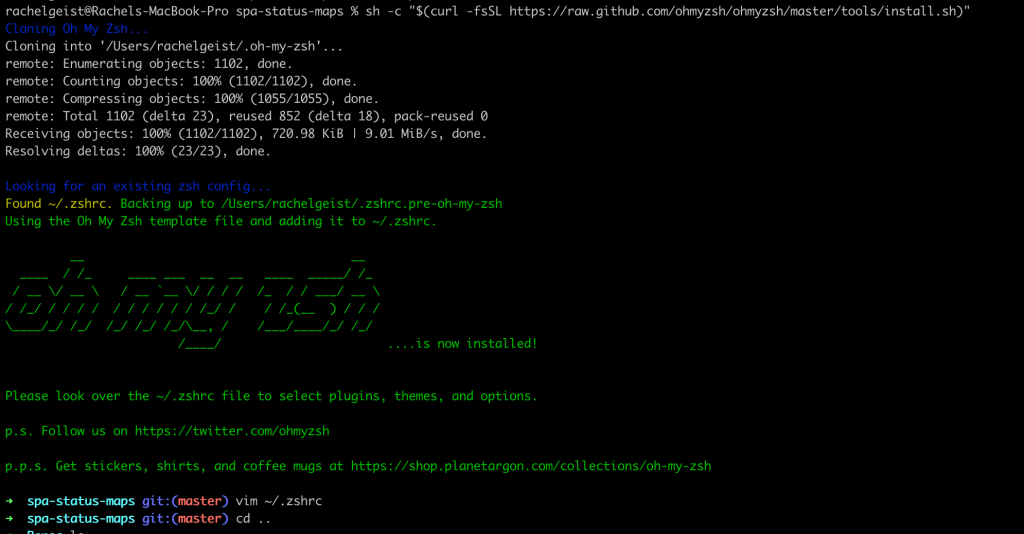
In the end, I got a tip to try Oh My Zsh. I installed it via curl as directed on their homepage and there you go. I could tab out all my git commands without having to edit bash_completion.d or any other file. There’s lots of plugins you can install and git came installed by default.

If I wanted to add more plugins, I’d just edit my ~/.zshrc file and add them as plugins. Super fast and super easy.

Look how pretty and useful!

I will say that if you want to also install the Docker plugin, there’s currently a bug with installing that one. To get that to work remove the zcompdump file in your home directory and then restart iTerm.

rm ~/.zcompdump-[DEVICE NAME]-[Numbers]

-Rachel